~ 免費旗幟設計圖庫 ~
Minecraft 旗幟設計與靈感
這裡的每款旗幟都能實際製作:使用遊戲中真實的圖案與染料,最多六層。每款設計都附按順序排列的織布機步驟,也可載入編輯器修改顏色。國旗、簡約圖案、裝飾與主題設計均有收錄。
裝飾
邊框、套疊形狀和重復紋樣,讓旗幟成為裝飾,而不只是一個符號。
織布機步驟
- 先準備一面白色旗幟。
- 1.選擇“紅色圓形”圖案,使用紅色染料。
- 2.選擇“白色菱形”圖案,使用白色染料。
- 3.選擇“中間紅色縱帶”圖案,使用紅色染料。
獲取指令(1.20.5+)
/give @p minecraft:white_banner[banner_patterns=[{pattern:"minecraft:circle",color:"red"},{pattern:"minecraft:rhombus",color:"white"},{pattern:"minecraft:stripe_center",color:"red"}]]織布機步驟
- 先準備一面淺藍色旗幟。
- 1.選擇“白色菱形”圖案,使用白色染料。
- 2.選擇“藍色框邊”圖案,使用藍色染料。
- 3.選擇“白色鋸齒框邊”圖案,使用白色染料。
獲取指令(1.20.5+)
/give @p minecraft:light_blue_banner[banner_patterns=[{pattern:"minecraft:rhombus",color:"white"},{pattern:"minecraft:border",color:"blue"},{pattern:"minecraft:curly_border",color:"white"}]]織布機步驟
- 先準備一面白色旗幟。
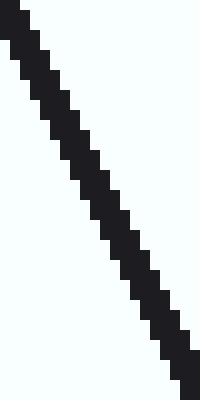
- 1.選擇“上方黑色倒三角形”圖案,使用黑色染料。
- 2.選擇“下方黑色三角形”圖案,使用黑色染料。
獲取指令(1.20.5+)
/give @p minecraft:white_banner[banner_patterns=[{pattern:"minecraft:triangle_top",color:"black"},{pattern:"minecraft:triangle_bottom",color:"black"}]]織布機步驟
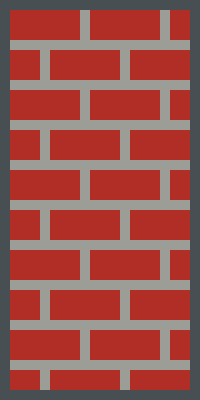
- 先準備一面紅色旗幟。
- 1.選擇“淺灰色磚牆花紋”圖案,使用淺灰色染料。
- 2.選擇“灰色框邊”圖案,使用灰色染料。
獲取指令(1.20.5+)
/give @p minecraft:red_banner[banner_patterns=[{pattern:"minecraft:bricks",color:"light_gray"},{pattern:"minecraft:border",color:"gray"}]]織布機步驟
- 先準備一面白色旗幟。
- 1.選擇“左上黑色矩形”圖案,使用黑色染料。
- 2.選擇“右下黑色矩形”圖案,使用黑色染料。
獲取指令(1.20.5+)
/give @p minecraft:white_banner[banner_patterns=[{pattern:"minecraft:square_top_left",color:"black"},{pattern:"minecraft:square_bottom_right",color:"black"}]]織布機步驟
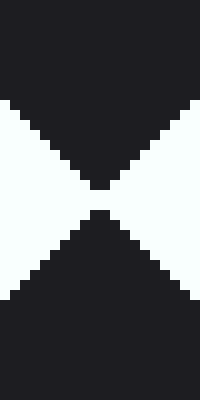
- 先準備一面黑色旗幟。
- 1.選擇“上方白色倒三角形”圖案,使用白色染料。
- 2.選擇“中間白色縱帶”圖案,使用白色染料。
獲取指令(1.20.5+)
/give @p minecraft:black_banner[banner_patterns=[{pattern:"minecraft:triangle_top",color:"white"},{pattern:"minecraft:stripe_center",color:"white"}]]織布機步驟
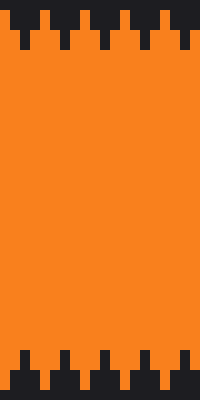
- 先準備一面橙色旗幟。
- 1.選擇“上側黑色鋸齒”圖案,使用黑色染料。
- 2.選擇“下側黑色鋸齒”圖案,使用黑色染料。
獲取指令(1.20.5+)
/give @p minecraft:orange_banner[banner_patterns=[{pattern:"minecraft:triangles_top",color:"black"},{pattern:"minecraft:triangles_bottom",color:"black"}]]織布機步驟
- 先準備一面淺藍色旗幟。
- 1.選擇“下方白色三角形”圖案,使用白色染料。
- 2.選擇“灰色往上漸淡”圖案,使用灰色染料。
獲取指令(1.20.5+)
/give @p minecraft:light_blue_banner[banner_patterns=[{pattern:"minecraft:triangle_bottom",color:"white"},{pattern:"minecraft:gradient_up",color:"gray"}]]織布機步驟
- 先準備一面黑色旗幟。
- 1.選擇“黃色框邊”圖案,使用黃色染料。
- 2.選擇“黃色菱形”圖案,使用黃色染料。
- 3.選擇“黑色圓形”圖案,使用黑色染料。
獲取指令(1.20.5+)
/give @p minecraft:black_banner[banner_patterns=[{pattern:"minecraft:border",color:"yellow"},{pattern:"minecraft:rhombus",color:"yellow"},{pattern:"minecraft:circle",color:"black"}]]織布機步驟
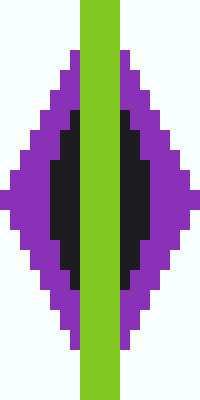
- 先準備一面白色旗幟。
- 1.選擇“紫色菱形”圖案,使用紫色染料。
- 2.選擇“黑色圓形”圖案,使用黑色染料。
- 3.選擇“中間淺綠色縱帶”圖案,使用淺綠色染料。
獲取指令(1.20.5+)
/give @p minecraft:white_banner[banner_patterns=[{pattern:"minecraft:rhombus",color:"purple"},{pattern:"minecraft:circle",color:"black"},{pattern:"minecraft:stripe_center",color:"lime"}]]織布機步驟
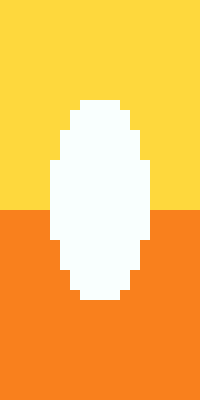
- 先準備一面黃色旗幟。
- 1.選擇“橙色往下漸淡”圖案,使用橙色染料。
- 2.選擇“白色圓形”圖案,使用白色染料。
獲取指令(1.20.5+)
/give @p minecraft:yellow_banner[banner_patterns=[{pattern:"minecraft:gradient",color:"orange"},{pattern:"minecraft:circle",color:"white"}]]織布機步驟
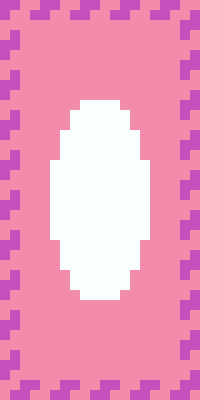
- 先準備一面粉紅色旗幟。
- 1.選擇“洋紅色鋸齒框邊”圖案,使用洋紅色染料。
- 2.選擇“白色圓形”圖案,使用白色染料。
獲取指令(1.20.5+)
/give @p minecraft:pink_banner[banner_patterns=[{pattern:"minecraft:curly_border",color:"magenta"},{pattern:"minecraft:circle",color:"white"}]]主題
圍繞場景或氛圍設計,可用於基地入口、商店招牌和生物群系標記。
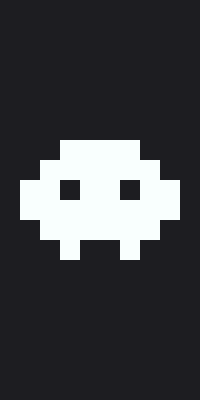
海盜
已用 1/6 層
⚑ 需要圖案物品
需要頭顱旗幟圖案:用紙與凋零骷髏頭顱合成。
織布機步驟
- 先準備一面黑色旗幟。
- 1.選擇“白色骷髏圖紋”圖案,使用白色染料,並放入“旗幟圖案”。
獲取指令(1.20.5+)
/give @p minecraft:black_banner[banner_patterns=[{pattern:"minecraft:skull",color:"white"}]]
苦力怕
已用 1/6 層
⚑ 需要圖案物品
需要苦力怕旗幟圖案:用紙與苦力怕的頭合成。
織布機步驟
- 先準備一面淺綠色旗幟。
- 1.選擇“黑色苦力怕圖紋”圖案,使用黑色染料,並放入“旗幟圖案”。
獲取指令(1.20.5+)
/give @p minecraft:lime_banner[banner_patterns=[{pattern:"minecraft:creeper",color:"black"}]]織布機步驟
- 先準備一面紫色旗幟。
- 1.選擇“黃色框邊”圖案,使用黃色染料。
- 2.選擇“黃色十字”圖案,使用黃色染料。
- 3.選擇“紫色圓形”圖案,使用紫色染料。
- 4.選擇“黃色菱形”圖案,使用黃色染料。
獲取指令(1.20.5+)
/give @p minecraft:purple_banner[banner_patterns=[{pattern:"minecraft:border",color:"yellow"},{pattern:"minecraft:straight_cross",color:"yellow"},{pattern:"minecraft:circle",color:"purple"},{pattern:"minecraft:rhombus",color:"yellow"}]]織布機步驟
- 先準備一面紅色旗幟。
- 1.選擇“白色對角交叉”圖案,使用白色染料。
- 2.選擇“白色框邊”圖案,使用白色染料。
- 3.選擇“紅色圓形”圖案,使用紅色染料。
獲取指令(1.20.5+)
/give @p minecraft:red_banner[banner_patterns=[{pattern:"minecraft:cross",color:"white"},{pattern:"minecraft:border",color:"white"},{pattern:"minecraft:circle",color:"red"}]]織布機步驟
- 先準備一面淺藍色旗幟。
- 1.選擇“下側白色鋸齒”圖案,使用白色染料。
- 2.選擇“中間白色橫帶”圖案,使用白色染料。
- 3.選擇“藍色頂部”圖案,使用藍色染料。
獲取指令(1.20.5+)
/give @p minecraft:light_blue_banner[banner_patterns=[{pattern:"minecraft:triangles_bottom",color:"white"},{pattern:"minecraft:stripe_middle",color:"white"},{pattern:"minecraft:stripe_top",color:"blue"}]]織布機步驟
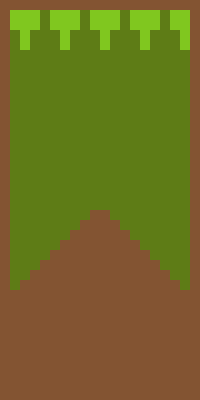
- 先準備一面綠色旗幟。
- 1.選擇“下方棕色三角形”圖案,使用棕色染料。
- 2.選擇“上側淺綠色鋸齒”圖案,使用淺綠色染料。
- 3.選擇“棕色框邊”圖案,使用棕色染料。
獲取指令(1.20.5+)
/give @p minecraft:green_banner[banner_patterns=[{pattern:"minecraft:triangle_bottom",color:"brown"},{pattern:"minecraft:triangles_top",color:"lime"},{pattern:"minecraft:border",color:"brown"}]]織布機步驟
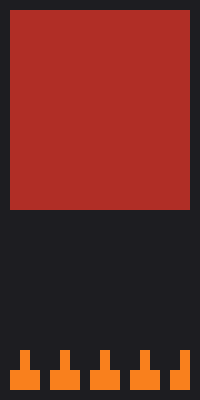
- 先準備一面紅色旗幟。
- 1.選擇“黑色往下漸淡”圖案,使用黑色染料。
- 2.選擇“下側橙色鋸齒”圖案,使用橙色染料。
- 3.選擇“黑色框邊”圖案,使用黑色染料。
獲取指令(1.20.5+)
/give @p minecraft:red_banner[banner_patterns=[{pattern:"minecraft:gradient",color:"black"},{pattern:"minecraft:triangles_bottom",color:"orange"},{pattern:"minecraft:border",color:"black"}]]織布機步驟
- 先準備一面青色旗幟。
- 1.選擇“淺藍色往上漸淡”圖案,使用淺藍色染料。
- 2.選擇“中間白色橫帶”圖案,使用白色染料。
- 3.選擇“下側藍色鋸齒”圖案,使用藍色染料。
獲取指令(1.20.5+)
/give @p minecraft:cyan_banner[banner_patterns=[{pattern:"minecraft:gradient_up",color:"light_blue"},{pattern:"minecraft:stripe_middle",color:"white"},{pattern:"minecraft:triangles_bottom",color:"blue"}]]織布機步驟
- 先準備一面黃色旗幟。
- 1.選擇“橙色往上漸淡”圖案,使用橙色染料。
- 2.選擇“下方棕色三角形”圖案,使用棕色染料。
獲取指令(1.20.5+)
/give @p minecraft:yellow_banner[banner_patterns=[{pattern:"minecraft:gradient_up",color:"orange"},{pattern:"minecraft:triangle_bottom",color:"brown"}]]織布機步驟
- 先準備一面白色旗幟。
- 1.選擇“淺藍色往下漸淡”圖案,使用淺藍色染料。
- 2.選擇“下側青色鋸齒”圖案,使用青色染料。
獲取指令(1.20.5+)
/give @p minecraft:white_banner[banner_patterns=[{pattern:"minecraft:gradient",color:"light_blue"},{pattern:"minecraft:triangles_bottom",color:"cyan"}]]織布機步驟
- 先準備一面黑色旗幟。
- 1.選擇“紫色往下漸淡”圖案,使用紫色染料。
- 2.選擇“黃色圓形”圖案,使用黃色染料。
- 3.選擇“黑色菱形”圖案,使用黑色染料。
獲取指令(1.20.5+)
/give @p minecraft:black_banner[banner_patterns=[{pattern:"minecraft:gradient",color:"purple"},{pattern:"minecraft:circle",color:"yellow"},{pattern:"minecraft:rhombus",color:"black"}]]織布機步驟
- 先準備一面黑色旗幟。
- 1.選擇“紅色往上漸淡”圖案,使用紅色染料。
- 2.選擇“下側橙色鋸齒”圖案,使用橙色染料。
獲取指令(1.20.5+)
/give @p minecraft:black_banner[banner_patterns=[{pattern:"minecraft:gradient_up",color:"red"},{pattern:"minecraft:triangles_bottom",color:"orange"}]]織布機步驟
- 先準備一面橙色旗幟。
- 1.選擇“紅色往下漸淡”圖案,使用紅色染料。
- 2.選擇“下側棕色鋸齒”圖案,使用棕色染料。
獲取指令(1.20.5+)
/give @p minecraft:orange_banner[banner_patterns=[{pattern:"minecraft:gradient",color:"red"},{pattern:"minecraft:triangles_bottom",color:"brown"}]]織布機步驟
- 先準備一面白色旗幟。
- 1.選擇“粉紅色垂直條紋”圖案,使用粉紅色染料。
- 2.選擇“中間洋紅色橫帶”圖案,使用洋紅色染料。
獲取指令(1.20.5+)
/give @p minecraft:white_banner[banner_patterns=[{pattern:"minecraft:small_stripes",color:"pink"},{pattern:"minecraft:stripe_middle",color:"magenta"}]]織布機步驟
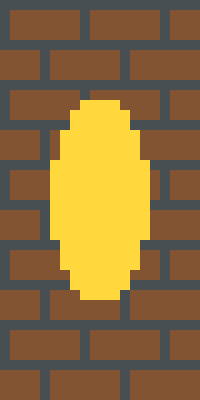
- 先準備一面棕色旗幟。
- 1.選擇“灰色磚牆花紋”圖案,使用灰色染料。
- 2.選擇“黃色圓形”圖案,使用黃色染料。
獲取指令(1.20.5+)
/give @p minecraft:brown_banner[banner_patterns=[{pattern:"minecraft:bricks",color:"gray"},{pattern:"minecraft:circle",color:"yellow"}]]簡約
一到兩層即可完成,適合快速裝飾牆面,也便於換色。
織布機步驟
- 先準備一面白色旗幟。
- 1.選擇“下方黑色三角形”圖案,使用黑色染料。
獲取指令(1.20.5+)
/give @p minecraft:white_banner[banner_patterns=[{pattern:"minecraft:triangle_bottom",color:"black"}]]織布機步驟
- 先準備一面黑色旗幟。
- 1.選擇“白色對角交叉”圖案,使用白色染料。
獲取指令(1.20.5+)
/give @p minecraft:black_banner[banner_patterns=[{pattern:"minecraft:cross",color:"white"}]]織布機步驟
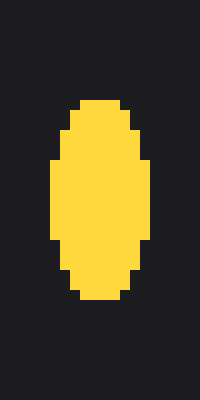
- 先準備一面黑色旗幟。
- 1.選擇“黃色圓形”圖案,使用黃色染料。
獲取指令(1.20.5+)
/give @p minecraft:black_banner[banner_patterns=[{pattern:"minecraft:circle",color:"yellow"}]]織布機步驟
- 先準備一面紅色旗幟。
- 1.選擇“白色菱形”圖案,使用白色染料。
獲取指令(1.20.5+)
/give @p minecraft:red_banner[banner_patterns=[{pattern:"minecraft:rhombus",color:"white"}]]織布機步驟
- 先準備一面白色旗幟。
- 1.選擇“黑色框邊”圖案,使用黑色染料。
獲取指令(1.20.5+)
/give @p minecraft:white_banner[banner_patterns=[{pattern:"minecraft:border",color:"black"}]]織布機步驟
- 先準備一面白色旗幟。
- 1.選擇“紅色垂直條紋”圖案,使用紅色染料。
獲取指令(1.20.5+)
/give @p minecraft:white_banner[banner_patterns=[{pattern:"minecraft:small_stripes",color:"red"}]]織布機步驟
- 先準備一面黃色旗幟。
- 1.選擇“橙色往下漸淡”圖案,使用橙色染料。
- 2.選擇“紅色往上漸淡”圖案,使用紅色染料。
獲取指令(1.20.5+)
/give @p minecraft:yellow_banner[banner_patterns=[{pattern:"minecraft:gradient",color:"orange"},{pattern:"minecraft:gradient_up",color:"red"}]]織布機步驟
- 先準備一面白色旗幟。
- 1.選擇“右斜黑色對角帶”圖案,使用黑色染料。
獲取指令(1.20.5+)
/give @p minecraft:white_banner[banner_patterns=[{pattern:"minecraft:stripe_downright",color:"black"}]]織布機步驟
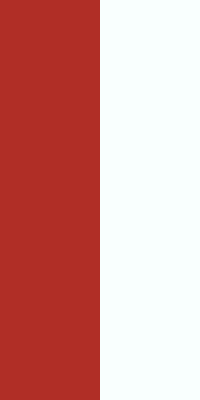
- 先準備一面紅色旗幟。
- 1.選擇“右半部分白色填滿”圖案,使用白色染料。
獲取指令(1.20.5+)
/give @p minecraft:red_banner[banner_patterns=[{pattern:"minecraft:half_vertical_right",color:"white"}]]織布機步驟
- 先準備一面淺藍色旗幟。
- 1.選擇“白色頂部”圖案,使用白色染料。
- 2.選擇“中間白色橫帶”圖案,使用白色染料。
- 3.選擇“白色底部”圖案,使用白色染料。
獲取指令(1.20.5+)
/give @p minecraft:light_blue_banner[banner_patterns=[{pattern:"minecraft:stripe_top",color:"white"},{pattern:"minecraft:stripe_middle",color:"white"},{pattern:"minecraft:stripe_bottom",color:"white"}]]織布機步驟
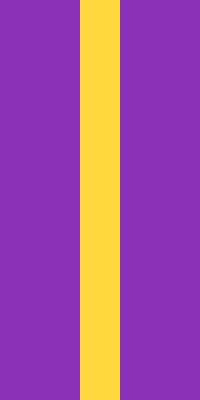
- 先準備一面紫色旗幟。
- 1.選擇“中間黃色縱帶”圖案,使用黃色染料。
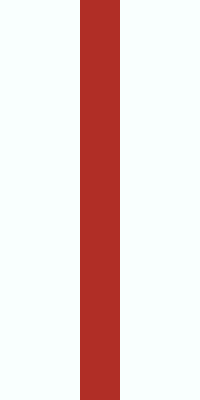
獲取指令(1.20.5+)
/give @p minecraft:purple_banner[banner_patterns=[{pattern:"minecraft:stripe_center",color:"yellow"}]]國旗
遊戲沒有精確的三等分或偏心十字,因此大多數國旗只能近似呈現,每款都會注明差異。日本、波蘭、烏克蘭、蘇格蘭等旗幟可以較準確地還原。
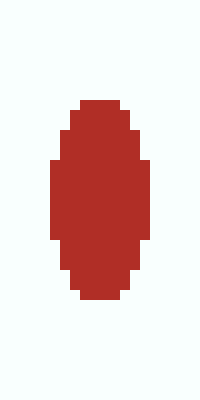
日本
已用 1/6 層
準確還原:白底紅圓,只需一次織布機操作。
織布機步驟
- 先準備一面白色旗幟。
- 1.選擇“紅色圓形”圖案,使用紅色染料。
獲取指令(1.20.5+)
/give @p minecraft:white_banner[banner_patterns=[{pattern:"minecraft:circle",color:"red"}]]
孟加拉
已用 1/6 層
基本還原:實際國旗的圓形略偏左。
織布機步驟
- 先準備一面綠色旗幟。
- 1.選擇“紅色圓形”圖案,使用紅色染料。
獲取指令(1.20.5+)
/give @p minecraft:green_banner[banner_patterns=[{pattern:"minecraft:circle",color:"red"}]]
波蘭
已用 1/6 層
準確還原:上白下紅,使用橫向對半圖案即可。
織布機步驟
- 先準備一面白色旗幟。
- 1.選擇“下半部分紅色填滿”圖案,使用紅色染料。
獲取指令(1.20.5+)
/give @p minecraft:white_banner[banner_patterns=[{pattern:"minecraft:half_horizontal_bottom",color:"red"}]]
印尼
已用 1/6 層
準確還原:上紅下白,與波蘭配色相反。
織布機步驟
- 先準備一面紅色旗幟。
- 1.選擇“下半部分白色填滿”圖案,使用白色染料。
獲取指令(1.20.5+)
/give @p minecraft:red_banner[banner_patterns=[{pattern:"minecraft:half_horizontal_bottom",color:"white"}]]織布機步驟
- 先準備一面藍色旗幟。
- 1.選擇“下半部分黃色填滿”圖案,使用黃色染料。
獲取指令(1.20.5+)
/give @p minecraft:blue_banner[banner_patterns=[{pattern:"minecraft:half_horizontal_bottom",color:"yellow"}]]
瑞士
已用 1/6 層
接近原樣:遊戲中的十字比瑞士國旗細;丹麥也會呈現為相同圖案。
織布機步驟
- 先準備一面紅色旗幟。
- 1.選擇“白色十字”圖案,使用白色染料。
獲取指令(1.20.5+)
/give @p minecraft:red_banner[banner_patterns=[{pattern:"minecraft:straight_cross",color:"white"}]]
丹麥
已用 1/6 層
近似設計:北歐十字應偏左,但遊戲只有居中十字,因此與瑞士圖案相同。
織布機步驟
- 先準備一面紅色旗幟。
- 1.選擇“白色十字”圖案,使用白色染料。
獲取指令(1.20.5+)
/give @p minecraft:red_banner[banner_patterns=[{pattern:"minecraft:straight_cross",color:"white"}]]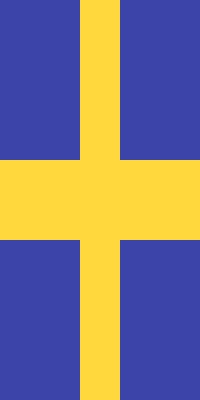
瑞典
已用 1/6 層
近似設計:用居中十字代替偏左的北歐十字。
織布機步驟
- 先準備一面藍色旗幟。
- 1.選擇“黃色十字”圖案,使用黃色染料。
獲取指令(1.20.5+)
/give @p minecraft:blue_banner[banner_patterns=[{pattern:"minecraft:straight_cross",color:"yellow"}]]
芬蘭
已用 1/6 層
近似設計:用居中十字代替偏左的北歐十字。
織布機步驟
- 先準備一面白色旗幟。
- 1.選擇“藍色十字”圖案,使用藍色染料。
獲取指令(1.20.5+)
/give @p minecraft:white_banner[banner_patterns=[{pattern:"minecraft:straight_cross",color:"blue"}]]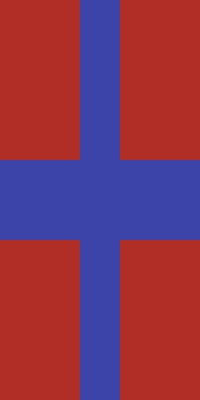
挪威
已用 3/6 層
近似設計:十字居中,白色邊緣佔一層。
織布機步驟
- 先準備一面紅色旗幟。
- 1.選擇“白色十字”圖案,使用白色染料。
- 2.選擇“中間藍色縱帶”圖案,使用藍色染料。
- 3.選擇“中間藍色橫帶”圖案,使用藍色染料。
獲取指令(1.20.5+)
/give @p minecraft:red_banner[banner_patterns=[{pattern:"minecraft:straight_cross",color:"white"},{pattern:"minecraft:stripe_center",color:"blue"},{pattern:"minecraft:stripe_middle",color:"blue"}]]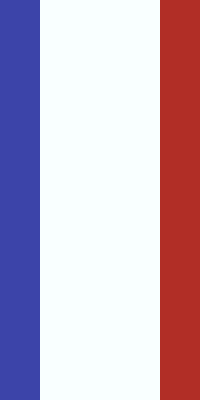
法國
已用 2/6 層
近似設計:遊戲無法豎向三等分,因此白色帶較寬。
織布機步驟
- 先準備一面白色旗幟。
- 1.選擇“左方藍色縱帶”圖案,使用藍色染料。
- 2.選擇“右方紅色縱帶”圖案,使用紅色染料。
獲取指令(1.20.5+)
/give @p minecraft:white_banner[banner_patterns=[{pattern:"minecraft:stripe_left",color:"blue"},{pattern:"minecraft:stripe_right",color:"red"}]]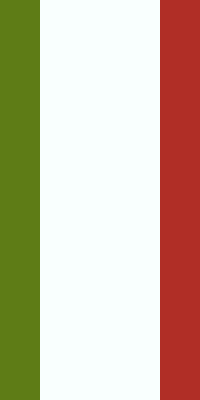
義大利
已用 2/6 層
近似設計:與其他豎向三色旗一樣,白色帶較寬。
織布機步驟
- 先準備一面白色旗幟。
- 1.選擇“左方綠色縱帶”圖案,使用綠色染料。
- 2.選擇“右方紅色縱帶”圖案,使用紅色染料。
獲取指令(1.20.5+)
/give @p minecraft:white_banner[banner_patterns=[{pattern:"minecraft:stripe_left",color:"green"},{pattern:"minecraft:stripe_right",color:"red"}]]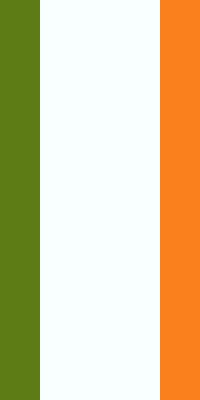
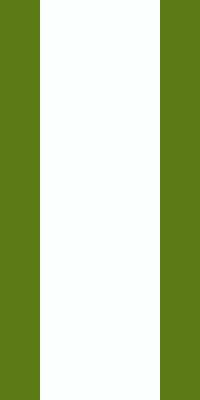
愛爾蘭
已用 2/6 層
近似設計:用橙色染料近似實際的藏紅花色。
織布機步驟
- 先準備一面白色旗幟。
- 1.選擇“左方綠色縱帶”圖案,使用綠色染料。
- 2.選擇“右方橙色縱帶”圖案,使用橙色染料。
獲取指令(1.20.5+)
/give @p minecraft:white_banner[banner_patterns=[{pattern:"minecraft:stripe_left",color:"green"},{pattern:"minecraft:stripe_right",color:"orange"}]]織布機步驟
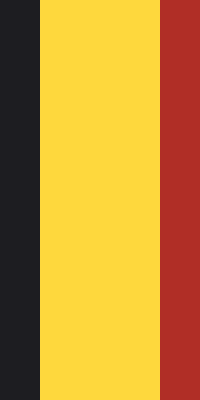
- 先準備一面黃色旗幟。
- 1.選擇“左方黑色縱帶”圖案,使用黑色染料。
- 2.選擇“右方紅色縱帶”圖案,使用紅色染料。
獲取指令(1.20.5+)
/give @p minecraft:yellow_banner[banner_patterns=[{pattern:"minecraft:stripe_left",color:"black"},{pattern:"minecraft:stripe_right",color:"red"}]]織布機步驟
- 先準備一面白色旗幟。
- 1.選擇“左方綠色縱帶”圖案,使用綠色染料。
- 2.選擇“右方綠色縱帶”圖案,使用綠色染料。
獲取指令(1.20.5+)
/give @p minecraft:white_banner[banner_patterns=[{pattern:"minecraft:stripe_left",color:"green"},{pattern:"minecraft:stripe_right",color:"green"}]]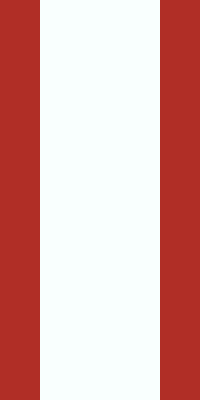
秘魯
已用 2/6 層
近似設計:白色帶較寬,與省略楓葉後的加拿大圖案相同。
織布機步驟
- 先準備一面白色旗幟。
- 1.選擇“左方紅色縱帶”圖案,使用紅色染料。
- 2.選擇“右方紅色縱帶”圖案,使用紅色染料。
獲取指令(1.20.5+)
/give @p minecraft:white_banner[banner_patterns=[{pattern:"minecraft:stripe_left",color:"red"},{pattern:"minecraft:stripe_right",color:"red"}]]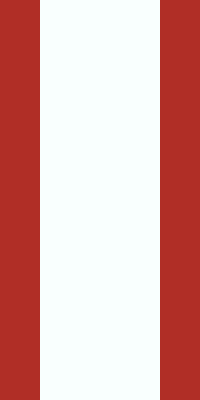
加拿大
已用 2/6 層
近似設計:六層無法還原楓葉,因此與秘魯圖案相同。
織布機步驟
- 先準備一面白色旗幟。
- 1.選擇“左方紅色縱帶”圖案,使用紅色染料。
- 2.選擇“右方紅色縱帶”圖案,使用紅色染料。
獲取指令(1.20.5+)
/give @p minecraft:white_banner[banner_patterns=[{pattern:"minecraft:stripe_left",color:"red"},{pattern:"minecraft:stripe_right",color:"red"}]]
德國
已用 2/6 層
近似設計:上下色帶都不足總高度的三分之一。
織布機步驟
- 先準備一面紅色旗幟。
- 1.選擇“黑色頂部”圖案,使用黑色染料。
- 2.選擇“黃色底部”圖案,使用黃色染料。
獲取指令(1.20.5+)
/give @p minecraft:red_banner[banner_patterns=[{pattern:"minecraft:stripe_top",color:"black"},{pattern:"minecraft:stripe_bottom",color:"yellow"}]]
荷蘭
已用 2/6 層
近似設計:上下色帶較窄,中央白色帶較寬。
織布機步驟
- 先準備一面白色旗幟。
- 1.選擇“紅色頂部”圖案,使用紅色染料。
- 2.選擇“藍色底部”圖案,使用藍色染料。
獲取指令(1.20.5+)
/give @p minecraft:white_banner[banner_patterns=[{pattern:"minecraft:stripe_top",color:"red"},{pattern:"minecraft:stripe_bottom",color:"blue"}]]織布機步驟
- 先準備一面紅色旗幟。
- 1.選擇“中間白色橫帶”圖案,使用白色染料。
獲取指令(1.20.5+)
/give @p minecraft:red_banner[banner_patterns=[{pattern:"minecraft:stripe_middle",color:"white"}]]
哥倫比亞
已用 2/6 層
近似設計:實際國旗的黃色佔一半,此設計用上半部表示。
織布機步驟
- 先準備一面黃色旗幟。
- 1.選擇“下半部分藍色填滿”圖案,使用藍色染料。
- 2.選擇“紅色底部”圖案,使用紅色染料。
獲取指令(1.20.5+)
/give @p minecraft:yellow_banner[banner_patterns=[{pattern:"minecraft:half_horizontal_bottom",color:"blue"},{pattern:"minecraft:stripe_bottom",color:"red"}]]
委內瑞拉
已用 2/6 層
近似設計:六層無法還原星星組成的弧線。
織布機步驟
- 先準備一面黃色旗幟。
- 1.選擇“下半部分藍色填滿”圖案,使用藍色染料。
- 2.選擇“紅色底部”圖案,使用紅色染料。
獲取指令(1.20.5+)
/give @p minecraft:yellow_banner[banner_patterns=[{pattern:"minecraft:half_horizontal_bottom",color:"blue"},{pattern:"minecraft:stripe_bottom",color:"red"}]]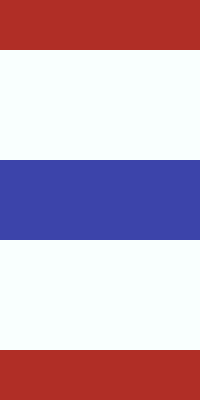
泰國
已用 3/6 層
近似設計:將五條色帶壓縮為遊戲圖案能組合出的效果。
織布機步驟
- 先準備一面白色旗幟。
- 1.選擇“紅色頂部”圖案,使用紅色染料。
- 2.選擇“紅色底部”圖案,使用紅色染料。
- 3.選擇“中間藍色橫帶”圖案,使用藍色染料。
獲取指令(1.20.5+)
/give @p minecraft:white_banner[banner_patterns=[{pattern:"minecraft:stripe_top",color:"red"},{pattern:"minecraft:stripe_bottom",color:"red"},{pattern:"minecraft:stripe_middle",color:"blue"}]]
科羅拉多州
已用 3/6 層
近似設計:用圓形概括字母 C 及其圓盤。
織布機步驟
- 先準備一面藍色旗幟。
- 1.選擇“中間白色橫帶”圖案,使用白色染料。
- 2.選擇“紅色圓形”圖案,使用紅色染料。
- 3.選擇“黃色菱形”圖案,使用黃色染料。
獲取指令(1.20.5+)
/give @p minecraft:blue_banner[banner_patterns=[{pattern:"minecraft:stripe_middle",color:"white"},{pattern:"minecraft:circle",color:"red"},{pattern:"minecraft:rhombus",color:"yellow"}]]
蘇格蘭
已用 1/6 層
準確還原:藍底白色斜十字,只需一次織布機操作。
織布機步驟
- 先準備一面藍色旗幟。
- 1.選擇“白色對角交叉”圖案,使用白色染料。
獲取指令(1.20.5+)
/give @p minecraft:blue_banner[banner_patterns=[{pattern:"minecraft:cross",color:"white"}]]
英格蘭
已用 1/6 層
接近原樣:遊戲中的十字比聖喬治十字細。
織布機步驟
- 先準備一面白色旗幟。
- 1.選擇“紅色十字”圖案,使用紅色染料。
獲取指令(1.20.5+)
/give @p minecraft:white_banner[banner_patterns=[{pattern:"minecraft:straight_cross",color:"red"}]]
牙買加
已用 3/6 層
接近原樣:上下為綠、兩側為黑,中間為金色斜十字。
織布機步驟
- 先準備一面黑色旗幟。
- 1.選擇“上方綠色倒三角形”圖案,使用綠色染料。
- 2.選擇“下方綠色三角形”圖案,使用綠色染料。
- 3.選擇“黃色對角交叉”圖案,使用黃色染料。
獲取指令(1.20.5+)
/give @p minecraft:black_banner[banner_patterns=[{pattern:"minecraft:triangle_top",color:"green"},{pattern:"minecraft:triangle_bottom",color:"green"},{pattern:"minecraft:cross",color:"yellow"}]]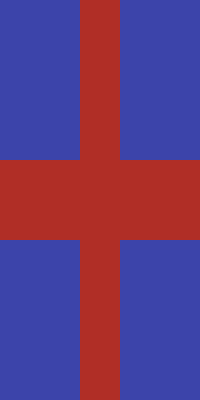
冰島
已用 3/6 層
近似設計:用居中十字代替偏左的北歐十字。
織布機步驟
- 先準備一面藍色旗幟。
- 1.選擇“白色十字”圖案,使用白色染料。
- 2.選擇“中間紅色縱帶”圖案,使用紅色染料。
- 3.選擇“中間紅色橫帶”圖案,使用紅色染料。
獲取指令(1.20.5+)
/give @p minecraft:blue_banner[banner_patterns=[{pattern:"minecraft:straight_cross",color:"white"},{pattern:"minecraft:stripe_center",color:"red"},{pattern:"minecraft:stripe_middle",color:"red"}]]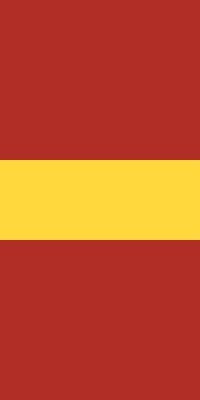
西班牙
已用 1/6 層
近似設計:中央金色帶比實際國旗的一半更寬。
織布機步驟
- 先準備一面紅色旗幟。
- 1.選擇“中間黃色橫帶”圖案,使用黃色染料。
獲取指令(1.20.5+)
/give @p minecraft:red_banner[banner_patterns=[{pattern:"minecraft:stripe_middle",color:"yellow"}]]
拉脫維亞
已用 1/6 層
近似設計:用棕色染料近似拉脫維亞的胭脂紅,白色帶也較寬。
織布機步驟
- 先準備一面棕色旗幟。
- 1.選擇“中間白色橫帶”圖案,使用白色染料。
獲取指令(1.20.5+)
/give @p minecraft:brown_banner[banner_patterns=[{pattern:"minecraft:stripe_middle",color:"white"}]]
保加利亞
已用 2/6 層
近似設計:上下色帶較窄,中央綠色帶較寬。
織布機步驟
- 先準備一面綠色旗幟。
- 1.選擇“白色頂部”圖案,使用白色染料。
- 2.選擇“紅色底部”圖案,使用紅色染料。
獲取指令(1.20.5+)
/give @p minecraft:green_banner[banner_patterns=[{pattern:"minecraft:stripe_top",color:"white"},{pattern:"minecraft:stripe_bottom",color:"red"}]]
俄羅斯
已用 2/6 層
近似設計:上下色帶較窄,中央藍色帶較寬。
織布機步驟
- 先準備一面藍色旗幟。
- 1.選擇“白色頂部”圖案,使用白色染料。
- 2.選擇“紅色底部”圖案,使用紅色染料。
獲取指令(1.20.5+)
/give @p minecraft:blue_banner[banner_patterns=[{pattern:"minecraft:stripe_top",color:"white"},{pattern:"minecraft:stripe_bottom",color:"red"}]]
匈牙利
已用 2/6 層
近似設計:上下色帶較窄,中間保留較多白色。
織布機步驟
- 先準備一面白色旗幟。
- 1.選擇“紅色頂部”圖案,使用紅色染料。
- 2.選擇“綠色底部”圖案,使用綠色染料。
獲取指令(1.20.5+)
/give @p minecraft:white_banner[banner_patterns=[{pattern:"minecraft:stripe_top",color:"red"},{pattern:"minecraft:stripe_bottom",color:"green"}]]
愛沙尼亞
已用 2/6 層
近似設計:上下色帶較窄,中央黑色帶較寬。
織布機步驟
- 先準備一面黑色旗幟。
- 1.選擇“藍色頂部”圖案,使用藍色染料。
- 2.選擇“白色底部”圖案,使用白色染料。
獲取指令(1.20.5+)
/give @p minecraft:black_banner[banner_patterns=[{pattern:"minecraft:stripe_top",color:"blue"},{pattern:"minecraft:stripe_bottom",color:"white"}]]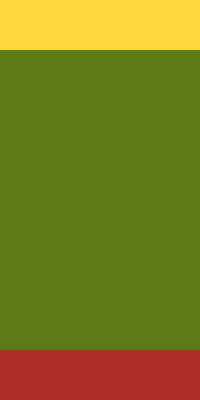
立陶宛
已用 2/6 層
近似設計:上下色帶較窄,中央綠色帶較寬。
織布機步驟
- 先準備一面綠色旗幟。
- 1.選擇“黃色頂部”圖案,使用黃色染料。
- 2.選擇“紅色底部”圖案,使用紅色染料。
獲取指令(1.20.5+)
/give @p minecraft:green_banner[banner_patterns=[{pattern:"minecraft:stripe_top",color:"yellow"},{pattern:"minecraft:stripe_bottom",color:"red"}]]
亞美尼亞
已用 2/6 層
近似設計:上下色帶較窄,中央藍色帶較寬。
織布機步驟
- 先準備一面藍色旗幟。
- 1.選擇“紅色頂部”圖案,使用紅色染料。
- 2.選擇“橙色底部”圖案,使用橙色染料。
獲取指令(1.20.5+)
/give @p minecraft:blue_banner[banner_patterns=[{pattern:"minecraft:stripe_top",color:"red"},{pattern:"minecraft:stripe_bottom",color:"orange"}]]
印度
已用 2/6 層
近似設計:上下色帶較窄,六層無法還原中央的法輪。
織布機步驟
- 先準備一面白色旗幟。
- 1.選擇“橙色頂部”圖案,使用橙色染料。
- 2.選擇“綠色底部”圖案,使用綠色染料。
獲取指令(1.20.5+)
/give @p minecraft:white_banner[banner_patterns=[{pattern:"minecraft:stripe_top",color:"orange"},{pattern:"minecraft:stripe_bottom",color:"green"}]]
阿根廷
已用 2/6 層
接近原樣:實際國旗也有較大的白色區域,此設計省略了太陽。
織布機步驟
- 先準備一面白色旗幟。
- 1.選擇“淺藍色頂部”圖案,使用淺藍色染料。
- 2.選擇“淺藍色底部”圖案,使用淺藍色染料。
獲取指令(1.20.5+)
/give @p minecraft:white_banner[banner_patterns=[{pattern:"minecraft:stripe_top",color:"light_blue"},{pattern:"minecraft:stripe_bottom",color:"light_blue"}]]織布機步驟
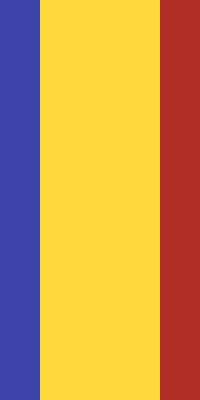
- 先準備一面黃色旗幟。
- 1.選擇“左方藍色縱帶”圖案,使用藍色染料。
- 2.選擇“右方紅色縱帶”圖案,使用紅色染料。
獲取指令(1.20.5+)
/give @p minecraft:yellow_banner[banner_patterns=[{pattern:"minecraft:stripe_left",color:"blue"},{pattern:"minecraft:stripe_right",color:"red"}]]織布機步驟
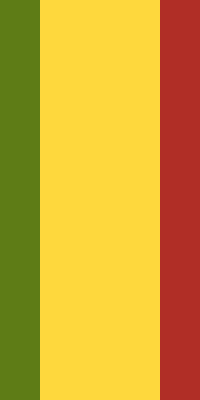
- 先準備一面黃色旗幟。
- 1.選擇“左方綠色縱帶”圖案,使用綠色染料。
- 2.選擇“右方紅色縱帶”圖案,使用紅色染料。
獲取指令(1.20.5+)
/give @p minecraft:yellow_banner[banner_patterns=[{pattern:"minecraft:stripe_left",color:"green"},{pattern:"minecraft:stripe_right",color:"red"}]]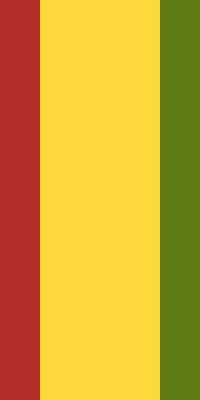
幾內亞
已用 2/6 層
近似設計:黃色帶較寬,配色方向與馬里相反。
織布機步驟
- 先準備一面黃色旗幟。
- 1.選擇“左方紅色縱帶”圖案,使用紅色染料。
- 2.選擇“右方綠色縱帶”圖案,使用綠色染料。
獲取指令(1.20.5+)
/give @p minecraft:yellow_banner[banner_patterns=[{pattern:"minecraft:stripe_left",color:"red"},{pattern:"minecraft:stripe_right",color:"green"}]]織布機步驟
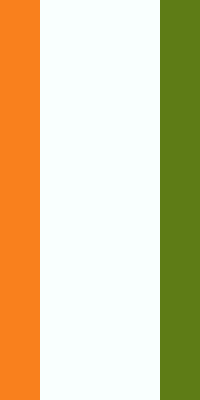
- 先準備一面白色旗幟。
- 1.選擇“左方橙色縱帶”圖案,使用橙色染料。
- 2.選擇“右方綠色縱帶”圖案,使用綠色染料。
獲取指令(1.20.5+)
/give @p minecraft:white_banner[banner_patterns=[{pattern:"minecraft:stripe_left",color:"orange"},{pattern:"minecraft:stripe_right",color:"green"}]]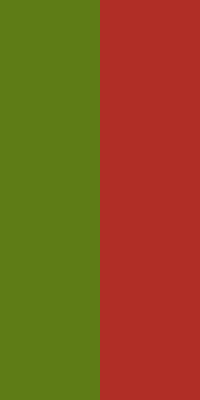
葡萄牙
已用 1/6 層
近似設計:實際綠色部分佔五分之二,而不是一半。
織布機步驟
- 先準備一面綠色旗幟。
- 1.選擇“右半部分紅色填滿”圖案,使用紅色染料。
獲取指令(1.20.5+)
/give @p minecraft:green_banner[banner_patterns=[{pattern:"minecraft:half_vertical_right",color:"red"}]]
巴西
已用 2/6 層
接近原樣:綠底、金色菱形、藍色圓形,在這組國旗中還原效果較好。
織布機步驟
- 先準備一面綠色旗幟。
- 1.選擇“黃色菱形”圖案,使用黃色染料。
- 2.選擇“藍色圓形”圖案,使用藍色染料。
獲取指令(1.20.5+)
/give @p minecraft:green_banner[banner_patterns=[{pattern:"minecraft:rhombus",color:"yellow"},{pattern:"minecraft:circle",color:"blue"}]]
德州
已用 2/6 層
接近原樣:靠旗桿一側為藍色,另一側上白下紅,省略了白色星星。
織布機步驟
- 先準備一面白色旗幟。
- 1.選擇“下半部分紅色填滿”圖案,使用紅色染料。
- 2.選擇“左方藍色縱帶”圖案,使用藍色染料。
獲取指令(1.20.5+)
/give @p minecraft:white_banner[banner_patterns=[{pattern:"minecraft:half_horizontal_bottom",color:"red"},{pattern:"minecraft:stripe_left",color:"blue"}]]看圖之外,更需要製作順序
Minecraft 旗幟是將圖案一層層疊出來的。把純色旗幟和染料放入織布機,每次從遊戲中的 42 種圖案選一種,最多操作六次,最終設計就由這套步驟決定。
只看成品截圖,很難反推出製作方法;而六層的限制也讓試錯更麻煩。本頁的每款設計都列出了順序和織布機里對應的圖案名稱,方便直接照做。
83 款設計中,有 81 款只需要旗幟和染料。其餘 2 款用到了苦力怕、頭顱等特殊圖案,需要先合成、交易或找到對應的圖案物品。卡片及步驟都會注明,出發製作前就能準備好。
如何製作圖庫中的旗幟
- 1製作底色旗幟用六塊同色羊毛與一根木棍合成旗幟。先核對設計所需底色,底色不同會影響後面的疊色效果。
- 2準備織布機用兩根線與兩塊木板合成織布機,放入旗幟、染料,必要時在第三個槽位放入圖案物品。
- 3依次新增圖層按列出的順序選擇圖案,取出旗幟再繼續下一步。後面的圖案會覆蓋前面的部分,順序不能顛倒。
- 4也可使用獲取指令Java 版開啓作弊後,可使用設計附帶的 /give 指令。這裡的指令採用 1.20.5 及更新版本的物品組件格式。
- 5按喜好換色點選“在編輯器中打開”,會完整載入圖層,直接修改染料即可,無需重新疊加。
設計常見問題
Minecraft 旗幟最多能有幾層圖案?
織布機最多新增六層,本頁設計均不超過這個限制。Java 版可用指令新增更多圖層,但織布機無法製作;基岩版最多顯示六層。
為甚麼兩面不同國旗看起來一樣?
旗幟圖案的形狀和位置有限,缺少精確三等分、偏心十字等組合,因此不同國旗可能只能用同一種近似設計。每張國旗卡片都會說明具體取捨。
這些設計需要額外的旗幟圖案物品嗎?
83 款中有 2 款需要,卡片和步驟會明確標出。其他設計僅使用基礎圖案和染料。特殊圖案物品可能需要合成、交易或開寶箱獲取,但使用後不會消耗。
這些圖案可以放到盾牌上嗎?
可以,但盾牌上的圖案區域更小,細節會重新採樣,不一定與旗幟完全一致。在旗幟編輯器里切換到盾牌預覽,即可提前確認。
為甚麼國旗只能近似還原?
遊戲中的左右豎條各佔五分之一寬度,無法精確三等分,也沒有偏心十字,所以三色旗的中間色帶更寬,北歐式十字會居中。每張卡片都會說明差異。
可以在自己的世界或服務器使用這些設計嗎?
可以自由使用,無需署名。它們由遊戲本身的幾何圖案組成,所附步驟只是製作方法。
MakeBead 與 Mojang Studios 或 Microsoft 沒有關聯,也未獲得其背書。Minecraft 是 Mojang Studios 的商標。